
This Spring, with input from the Commons community, the Commons team has developed a quick privacy checkup. These tips will help Commons members make sure they know how to protect their information and privacy when using the Commons.
Commons members have control over the information they share and the content they create on the Commons. Use the information below to check your privacy settings on the Commons and make sure you know what information you are sharing on the platform.
Site and group administrators have increased responsibility to ensure Commons users’ privacy. Admins can select different settings to control what content is visible on sites and groups they control. Admins are responsible for ensuring that users are aware of how content is being shared on the group or site.
Below are a few places where you can check and edit settings to protect your privacy.
Account Settings
Profile Photo: While we encourage users to personalize their account with a custom photo, you do not have to choose an identifying photo of yourself. You can choose any image you like and that you have the rights to use (i.e. a picture you took or one that is openly licensed).
Security: Make sure to set up two-factor authentication. It helps keep your account secure!
Profile
Display Name: This name will be connected to your content or activity on the Commons, and therefore must be visible to everyone. But you can make this display name anything you like, including an alias. If you are a student or working with others on the Commons, you may need to let your instructors and colleagues know what name you go by on the Commons.
Other Profile areas offer visibility options, and you can choose to hide areas of your profile that you do not want to be public. Public elements of Commons profiles are indexable by search engines, so it is particularly important to consider what you’d like to be viewable on the open internet.
Group & Site Privacy Settings
Beyond your profile, there are other “areas” of the Commons that have variable privacy settings: Groups and Sites. Group and Site administrators control the privacy settings of these areas.
The visibility of Groups, Sites, and related activity in these areas is determined by the individual Group and Site settings.
If you are a Group or Site Administrator, the sections below apply to you! You should revisit the group or site settings, and be sure that users of your group or site know if they are sharing information publicly.
If you are a member of a group or site, ask the Group/Site administrator about the privacy settings!
If you are an instructor using a group or site for a course, these considerations are particularly important in order to protect the identity and work of students who engage in your course on the Commons.
If you are a student using Commons to participate in a course, ask your instructor about the privacy settings for your course site or group.
Site Administrators
Site Visibility
Each Commons Site has stand-alone privacy settings that determine site visibility. These settings are controlled by the Site Administrator(s) and determine who can see the content and activity on the site.
Visibility settings are controlled in the site Dashboard in the Settings area for “Reading” (Path: Dashboard > Settings > Reading). The Site Visibility Settings also determine what activity is shared in the Commons Activity Feeds across the main pages of the site.
There are two “public” options and three “private” visibility settings for sites. Read more about Site Visibility Settings here. The site visibility can be changed at any time. So, you can work and build the site and its content in private, with a select group of users, and then later you could choose to make the site public to the whole internet. Or, you can “close down” a public site to revamp an old design, and then “open it back up” to be public after the new design is complete. And so on.
If your site is public, or will at some point be made public, all users who create content on the site should be aware that the content will be public. This is especially important for instructors using a site to teach a class. If student work will, at any point, be made public, students should know this, and have the option to opt out or do their work in another manner. Instructors who teach on the Commons are responsible for ensuring students understand the privacy settings and are aware and in agreement if their work will be public.
Password Protecting Pages and Posts
If a Commons user would like a site to be public, but requires a few areas of a site to be private, they can build a password-protected page or pages to allow limited access to portions of a public site.
For example, let’s say you have a departmental website to share information about the department, projects, and events. The Site Visibility settings are set to public but you would like to share documents with only a select group of people (students, admins). To do this, you can build a page called “Forms and Documents” and password protect that page so only people associated with the department can access it. This page would be “visible” to all site visitors, but when they click on the page to enter, they will be asked for the password.
Posts can also be password-protected or made “private” so that they are only visible to the author and the administrator of the site. This is helpful in class settings where an instructor would like students to write posts and have the posts only be visible to the instructor and the student. In this case, the instructor should enable the plugin “CAC Private Visibility Default” to ensure all posts created on the site are marked as “private”.
Group Administrators
Group Privacy Settings
Each Commons Group has stand-alone privacy settings that determine the group and group activity visibility. These settings are controlled by Group Admin(s) and determine who can see the content and activity in the group.
Group Privacy Settings are managed and controlled in the group “Manage” area in “Settings”.
There are two private settings for groups – private and hidden – and one public setting. Please note: if the group is totally public, any person on the internet can visit the group and see all the content, activity, forums posts, etc.
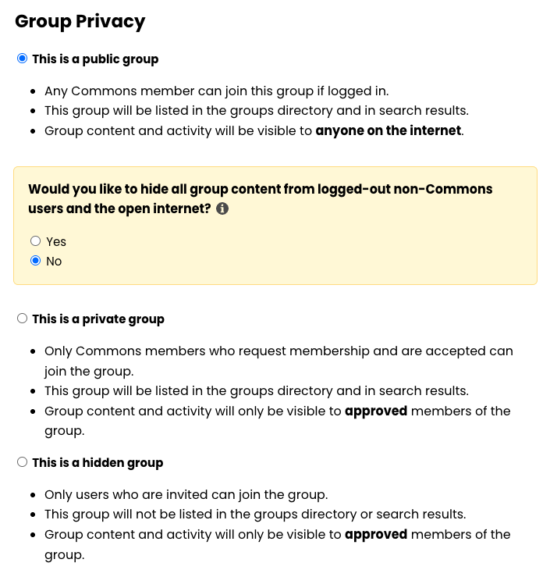
We have recently added a 4th option that allows a group to be public, but only to logged-in Commons members. To make your group content visible only to logged-in Commons users, Group Admins would need to go to the Group and go to “Manage > Settings”. You will see the Groups current settings, and if the group was public, the question will default to “No” (as this was the previous setting). But we have now added the question in yellow, “Would you like to hide all group content from logged-out non-Commons users and the open internet?”. Selecting “Yes” allows the group to be “public” to Commons members, AKA people who have registered and confirmed their association with CUNY, but hides content from non-Commons people visiting the site.
We added this option recognizing that Group Admins and Members did not have a way to share their group content with other Commons members and CUNY folks without making the group and its contents completely public to the open internet. The Commons seeks to support collaboration and connection across the university, but we also want to protect our members’ privacy and intellectual work. We developed this 4th “in-between” option as a way to attend to both of these commitments.
You can read more about the group privacy update in our Spring 2026 release post and in the group privacy documentation.

This entry is licensed under a Creative Commons Attribution-NonCommercial-ShareAlike 4.0 International license.


Comments are closed.